Create an Invoice
Cynco makes it easy to create professional invoices for your customers.
Follow the steps below to create and issue a new invoice.
Invoice Preview
When you open the New Invoice page, you’ll see a live Invoice Preview on the right side.
This preview updates automatically as you add information, so you always know what your customer will see.
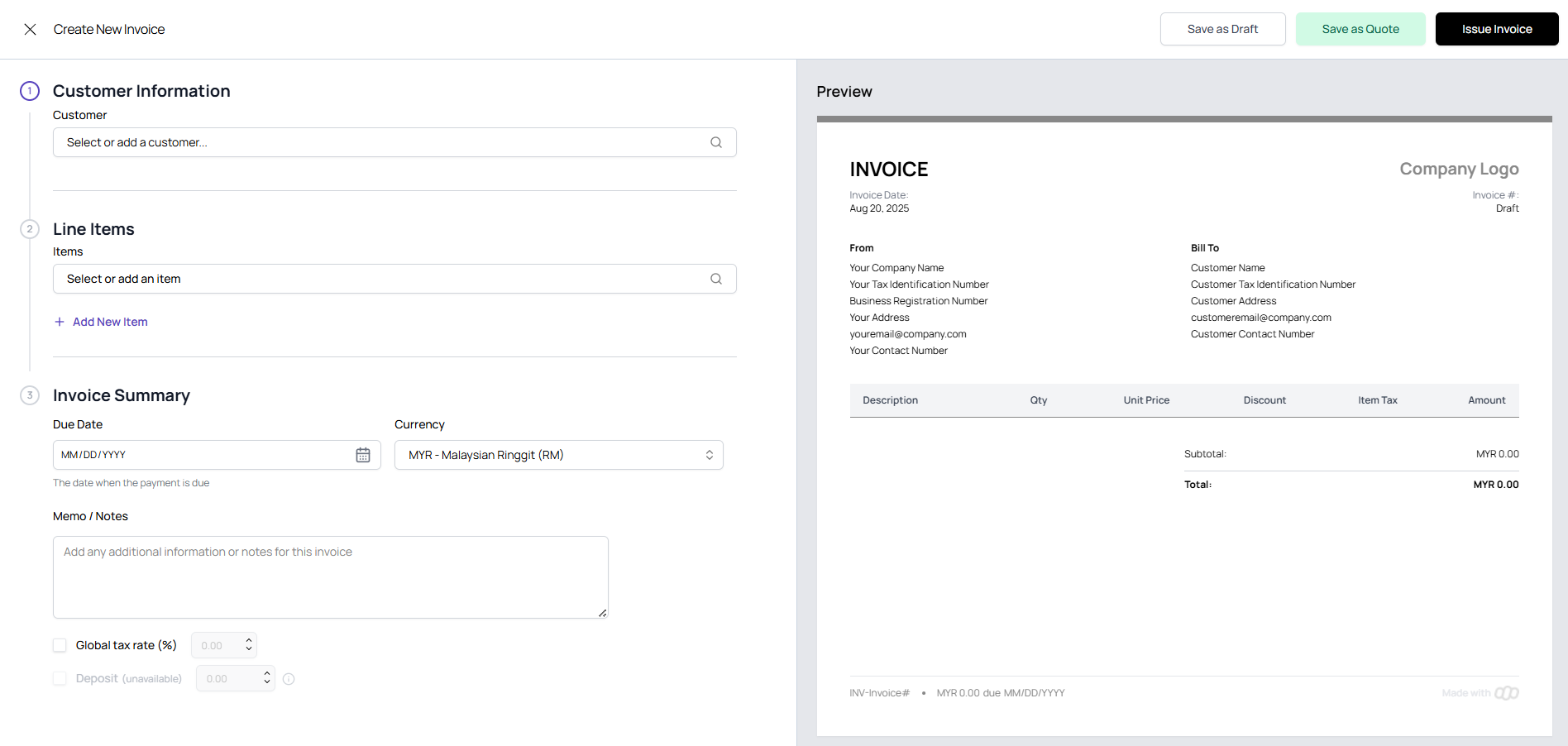
1. Customer Information
- Click the Customer field.
- Select an existing customer from the dropdown.
- If the customer doesn’t exist, click Add New Customer.
- Fill in the customer details:
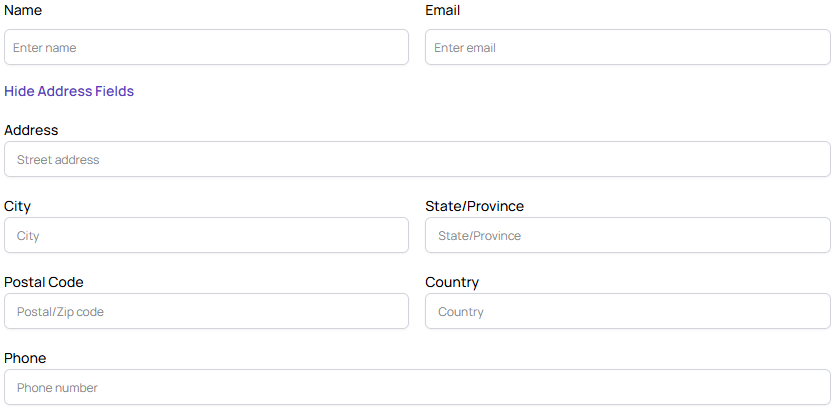
- Click Save Customer to store the details for future use.
2. Line Items
- Click Add Item.
- Select an existing item from your inventory or click Add New Item.
- If adding a new item, fill in:
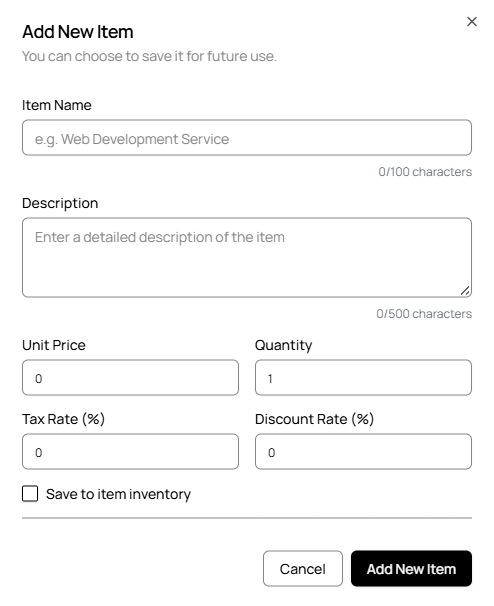
- (Optional) Save to Item Inventory → allows reuse of this item later.
- Click Add Item to include it in your invoice.
- Repeat as needed for multiple items.
info
Saved items appear automatically in your inventory dropdown for faster selection next time.
3. Invoice Summary
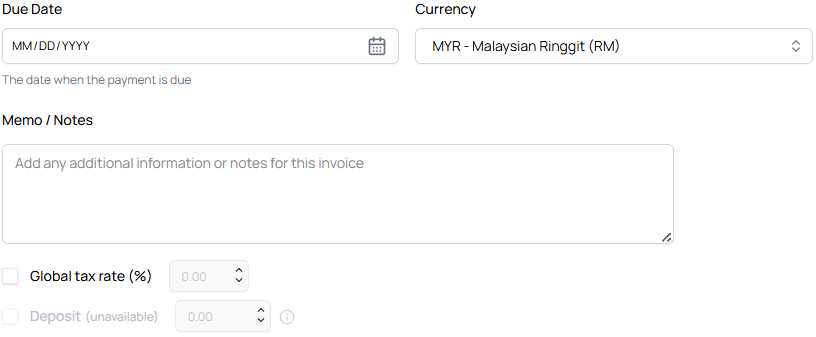
- Enter the Due Date for payment.
- Choose the Currency (e.g., MYR, SGD, USD).
- (Optional) Add Memo/Notes for the customer.
- Choose whether to apply a Global Tax (applied across all items).
- (Optional) Add a Deposit amount if required.
4. Save or Issue the Invoice
Once all information is complete, choose one of the following actions:
- 💾 Save as Draft → Keeps the invoice for later editing.
- 📝 Save as Quote → Creates a quotation instead of a final invoice.
- 🚀 Issue Invoice → Sends the invoice to the customer immediately.
Next Step
You can track invoice status in the Invoices Dashboard.